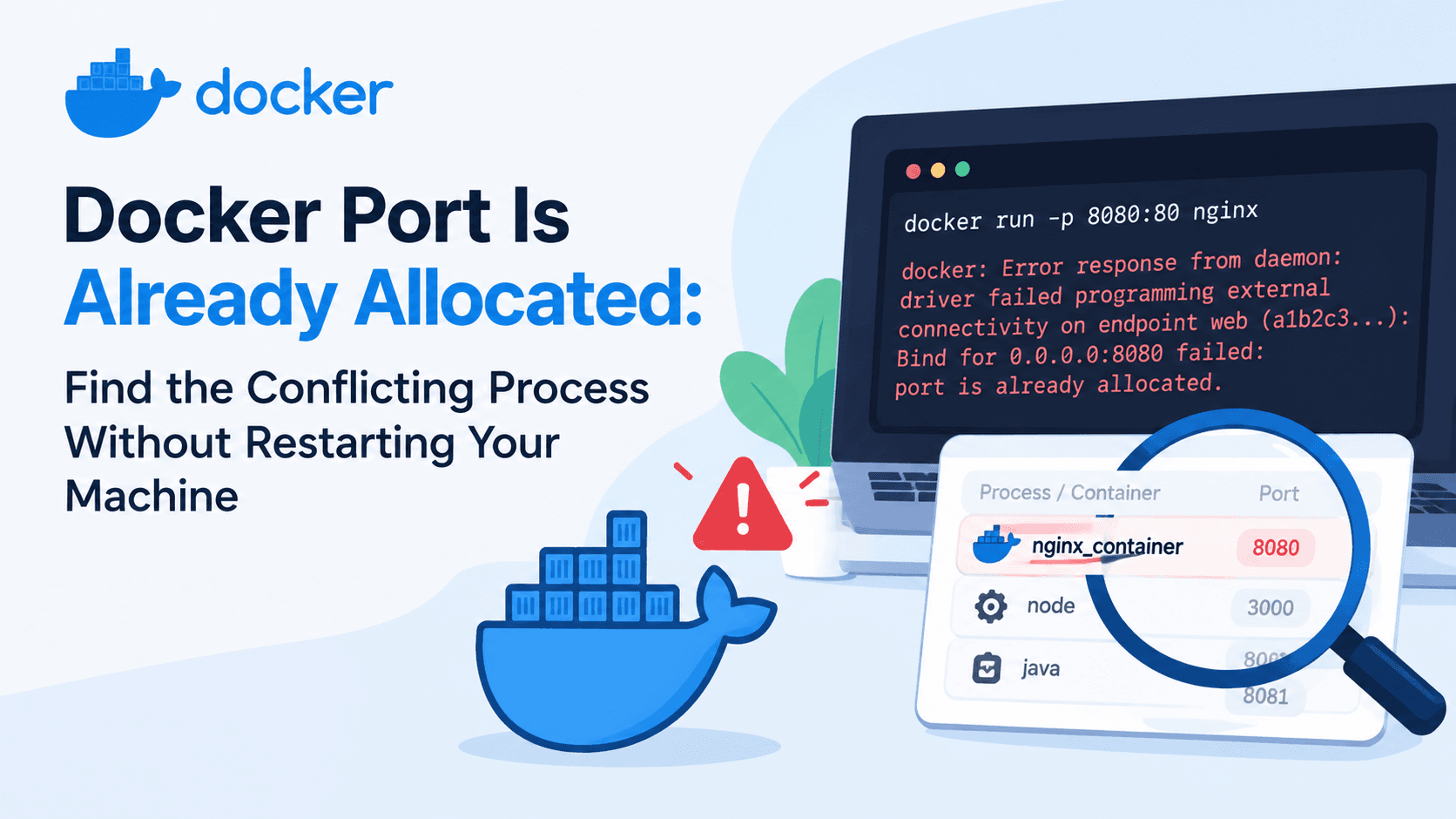
Docker Port Is Already Allocated: Find the Conflicting Process Without Restarting Your Machine
You run docker run -p 8080:80 nginx or docker compose up, and instead of a running container you get this:
docker: Error response from daemon: driver failed programming external connectivity on endpoint web (a1b2c3...): Bind for 0.0.0.0:8080 failed: port is already allocated.
The usual reaction is to restart Docker, then the laptop, and hope it goes away. It often does, which is why the habit sticks. But a reboot is the slowest and least informative fix. It hides which process held the port, so the problem returns next week.
This guide shows how to find exactly what is holding the port, on Linux, macOS and Windows, and how to fix it without rebooting. It also covers how to stop it from recurring.
Quick answer: run docker ps --filter "publish=8080" first. If a container shows up, stop it or remap your port. If nothing shows up, a non-Docker process owns the port. Find it with ss, lsof or netstat, depending on your operating system.
What "port is already allocated" actually means
When you publish a port with -p 8080:80 (or ports: in Compose), Docker sets up a forwarding rule from a port on the host to a port inside the container. The official describes it this way: maps port 8080 on the Docker host to port 80 in the container.
A host port can only be bound by one listener at a time. If something already holds it, Docker cannot create the mapping and the container fails to start.
Two similar messages are worth telling apart:
Error message
Usual cause
Bind for 0.0.0.0:8080 failed: port is already allocated
Most often another Docker container, or a stale Docker mapping, already publishes that host port
listen tcp 0.0.0.0:8080: bind: address already in use
Most often a non-Docker process on the host is already listening on that port
This distinction is a useful starting point, not a guarantee. Docker Desktop and different Docker Engine versions word these errors differently, and either message can appear in either situation. Treat the message as a hint and confirm with the commands below.
Step 1: Check whether another container owns the port
Start with Docker itself, because a leftover container is the most common culprit. Ask Docker which containers publish port 8080:
docker ps --filter "publish=8080"
If a container appears, that is your conflict. To see every running container with its port mappings in a readable table:
Look at the Ports column. A value like 0.0.0.0:8080->80/tcp means that container is holding host port 8080.
Containers started from other projects are easy to forget. docker ps lists containers from every project and directory, not just the one you are in. A database from a tutorial last month can still be running and publishing port 5432.
You can also check a specific container's mappings:
The output is compact JSON on one line. Paste it into the JSON Formatter & Validator to read it with proper indentation.
Step 2: If Docker shows nothing, find the host process
If docker ps --filter "publish=8080" returns nothing, no running container publishes that port. Something outside Docker is listening on it. Use the command for your operating system.
Linux
ss is installed on virtually every modern distribution:
sudo ss -ltnp 'sport = :8080'
The -l flag shows listening sockets, -t limits to TCP, -n skips name resolution, and -p shows the owning process. You need sudo to see processes owned by other users.
An alternative is lsof:
sudo lsof -nP -iTCP:8080 -sTCP:LISTEN
If the process name is docker-proxy, that is Docker's own userland proxy, which means a container is holding the port. Go back to Step 1, and include stopped or crashing containers with docker ps -a.
macOS
sudo lsof -nP -iTCP:8080 -sTCP:LISTEN
On recent macOS versions, ports 5000 and 7000 are commonly taken by the system's AirPlay Receiver feature (shown as ControlCenter). If you want port 5000 for a Flask app or a registry container, either choose a different host port or turn off AirPlay Receiver in System Settings.
Windows (Command Prompt)
netstat -ano | findstr :8080
The last column is the process ID (PID). Look up what it is:
Replace 4242 with the OwningProcess value from the first command. On Windows, port 80 is often held by IIS, by another web server such as Apache, or by the system itself. If the PID is 4, the Windows HTTP service is the owner, and the fix is to choose a different port instead of killing anything.
Step 3: Decide how to fix it
Once you know the owner, you have three sensible options. Choose based on what the conflicting process is.
docker stop sends a termination signal and gives the application a grace period before forcing it to exit. If you are not sure the container is disposable, check what it is first (docker ps, docker logs). Do not stop a container holding data you still need.
For Compose projects, use Compose to clean up, because it knows which containers belong together:
docker compose ls
docker compose -p <project-name> down
Running docker compose down --remove-orphans in the project directory also removes containers from services you deleted from the Compose file. The docker compose down reference lists the available options.
Option B: Change the host port
You do not have to free port 8080 at all. The host port (left side) can be anything free, while the container port (right side) stays the same:
docker run -d -p 8081:80 nginx
In Compose:
services:
  web:
    image: nginx
    ports:
      - "8081:80"
Your application inside the container still listens on port 80. Only the address you use from the host changes, to http://localhost:8081.
To avoid editing the file every time, read the port from an environment variable with a default:
Now WEB_PORT=8081 docker compose up works without touching the file. See the Compose file reference for the ports attribute for the short and long syntax.
Option C: Let Docker pick a free port
If you do not care which host port is used, leave the host side out. Docker assigns an unused ephemeral port. The Docker documentation on publishing and exposing ports covers this:
docker run -d -p 80 nginx
docker ps
The Ports column shows the port Docker chose. To look it up directly:
docker port <container-name> 80
This approach is useful for tests and for running several copies of the same service side by side. It is less convenient for services you open in a browser every day, where a fixed port is easier to remember.
Option D: Stop the host process
If the owner is a host service you do not need running, such as a local database or a web server you forgot about, stop it using your system's service manager rather than killing it blindly:
Avoid kill -9 as a first move. It prevents the process from shutting down cleanly, which can corrupt data for databases. If you must end a process, try a normal kill <pid> first.
Step 4: When no process shows up but the error persists
Occasionally you check everything and still see the error. The usual causes are below, from least to most disruptive.
A half-started container is holding the mapping
A container that failed during start can leave a mapping behind. List all containers, including stopped ones, and remove the broken one:
docker ps -a
docker rm -f <container-name>
Then run your command again.
Docker Desktop is out of sync
On Docker Desktop for Mac or Windows, the app runs a background virtual machine, and its port forwarding can occasionally hold a port that no longer has a container behind it. Quit and restart Docker Desktop from its menu. This is far quicker than rebooting the machine and usually clears the stale state.
Restart only the Docker daemon (Linux)
sudo systemctl restart docker
Be aware that restarting the daemon stops running containers unless you have enabled the live-restore option. Use this only when you are comfortable interrupting them.
Windows reserved port ranges
On Windows, Hyper-V and WSL 2 can reserve blocks of ports, which makes them unavailable even though nothing is listening. You will often see an error mentioning a socket permission problem rather than "already allocated". Check the reserved ranges in an administrator terminal:
netsh interface ipv4 show excludedportrange protocol=tcp
If your port falls inside one of the ranges listed, no process is to blame. Pick a port outside the ranges. Many developers choose values like 3000, 8081 or 9000, but always verify against your own list, since the reserved blocks differ per machine.
A repeatable troubleshooting routine
Here is the whole process in the order that finds the answer fastest:
Run docker ps --filter "publish=<port>". If a container appears, stop it or remap your port.
Run docker ps -a to look for a broken or exited container from the same project.
Check the host with ss, lsof, netstat or Get-NetTCPConnection. Identify the process before you act on it.
Fix it by stopping the owner, changing the host port or letting Docker choose one.
Restart Docker Desktop or the daemon only if no owner can be found.
Reboot as a last resort. In practice it is rarely needed.
How to stop this from happening again
Give every project its own port range
Many conflicts happen because every tutorial uses 8080, 3000 or 5432. Pick a convention for each project, such as 8100–8199 for one app and 8200–8299 for another, and write it in the project README.
Bind to localhost when you do not need external access
Publishing a port without an address makes it reachable on all network interfaces. For local development, bind it to the loopback address:
ports:
  - "127.0.0.1:8080:80"
The Docker documentation warns that publishing container ports is insecure by default, so limiting a database or admin tool to 127.0.0.1 is a good habit. It does not change how conflicts work, because the host port is still unique, but it reduces what is exposed to your network.
Keep ports out of your Compose file
Use environment variables with defaults, as shown in Option B. Each developer and each CI job can then override the port without editing a shared file.
Clean up with down, not just Ctrl+C
Pressing Ctrl+C in a docker compose up session stops the containers but leaves them in place. Running docker compose down removes them and their default network, which keeps stale state from piling up.
Use dynamic ports in tests and CI
If you run test suites in parallel, fixed host ports will collide. Let Docker assign them (Option C) and read the assigned port from the container at runtime. If you are building parallel pipelines, the GitHub Actions parallel tests guide explains how to split work across jobs, which is where unique ports matter most.
Do not publish what only containers need
Services that talk to each other on the same Docker network do not need published ports. A web container can reach a database container by its service name and container port. Skipping the ports: entry for that database removes one possible conflict and one exposure point.
Frequently asked questions
What is the difference between "port is already allocated" and "address already in use"?
The first usually means another container, or Docker's own mapping, already holds the host port. The second usually means a host process outside Docker holds it. The wording can vary between Docker versions and platforms, so confirm with docker ps --filter "publish=<port>" and a host-level check rather than relying on the message alone.
Do I need to restart my computer to fix a Docker port conflict?
Almost never. Identifying and stopping the process that owns the port, or choosing a different host port, resolves it. Restarting Docker Desktop covers most of the remaining cases.
How do I find which container is using a port?
Run docker ps --filter "publish=8080" and replace 8080 with your port. You can also run docker ps and read the Ports column.
Can two containers use the same container port?
Yes. The conflict is only about host ports. Two containers can both listen on port 80 inside their own network namespaces, as long as they are published to different host ports, for example 8080:80 and 8081:80.
Why does the error persist after I stop the container?
Check for a second container still using the port, a different Compose project, or an exited container left over from a failed start. Run docker ps -a and remove what you do not need. If that is clean, look for a host process or, on Windows, a reserved port range.
Is it safe to use kill -9 on the process holding the port?
It is not a good first choice. It ends the process without letting it clean up, which can lose unsaved data. Use the service manager or a normal kill first, and only escalate if the process refuses to exit.
Conclusion
"Port is already allocated" looks like a mysterious Docker failure, but it is a simple ownership problem: two things want the same host port. The fastest path is to ask Docker first with docker ps --filter "publish=<port>", then ask the operating system with ss, lsof or netstat. Once you know who owns the port, the fix takes seconds, whether that means stopping a container, remapping the host port or letting Docker pick one.
Keep the troubleshooting routine handy and adopt the prevention habits above, especially environment-variable ports and docker compose down. You will rarely need to restart your machine over a port conflict again.
3TypeScript Discriminated Unions: Type Narrowing Guide