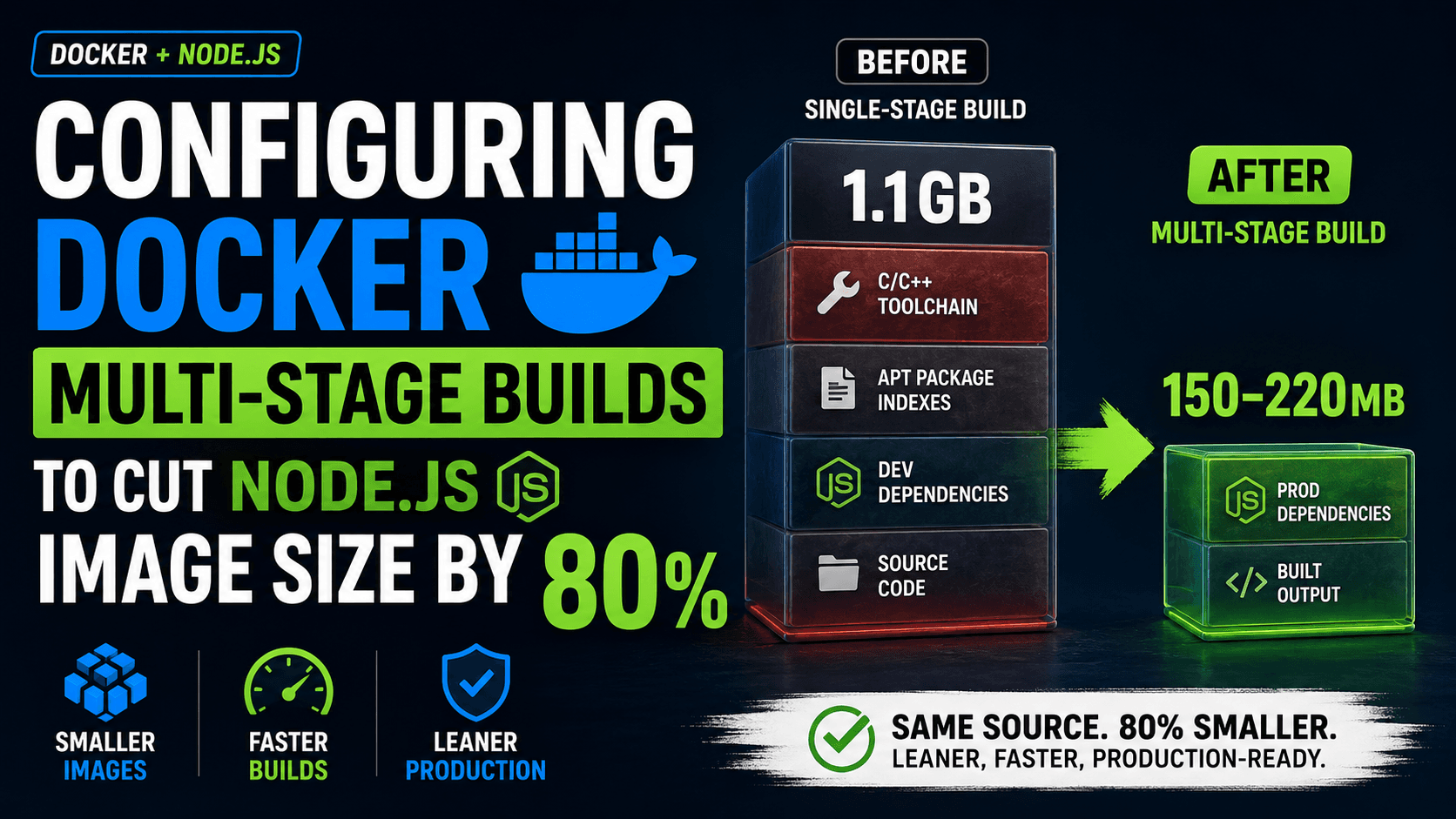
A Dockerfile that starts FROM node:20, runs npm install, and copies the whole project in produces a working container — and also a 1.1GB one, most of which is a C/C++ toolchain, apt package indexes, and devDependencies your runtime never touches. Multi-stage builds fix this by splitting the build environment from the runtime environment into separate FROM blocks inside a single Dockerfile, so only the compiled output crosses into the final image. By the time you finish this walkthrough, you'll have a production image in the 150–220MB range built from the same source, and you'll understand exactly which layer each megabyte came from — which matters more than the final number, because that's what lets you keep shrinking it as your dependencies change.
Prerequisites
- Docker Engine 20.10 or later, or Docker Desktop with BuildKit enabled (BuildKit has been the default builder since Docker Engine 23.0, so recent installs don't need a flag — confirm with
docker buildx version). - A Node.js project with a
package.jsonandpackage-lock.jsoncommitted.npm ciin Step 3 requires the lockfile to exist and be in sync withpackage.json, or it fails outright rather than silently resolving a different tree. - Basic familiarity with a single-stage
Dockerfile— this tutorial assumes you have one already and are refactoring it, not writing one from scratch.
Step 1: Measure the Baseline Before Changing Anything
You can't validate an 80% reduction without a number to reduce from. Build your current single-stage image and record its size before touching the Dockerfile.
bash
docker build -t myapp:baseline .
docker images myapp:baseline --format "{{.Size}}"
Expected output: A single-stage image built FROM node:20 with a full npm install typically lands between 900MB and 1.2GB, depending on how many native-module dependencies (bcrypt, sharp, sqlite3) pull in build tooling. If you're already on node:20-slim or node:20-alpine as a single stage, your baseline will be lower — 300–450MB is common — and your realistic reduction target from multi-staging alone will be smaller than 80%; the full 80% figure assumes a full Debian base as the starting point, which is still the most common default for teams that haven't optimized yet.
Step 2: Understand What a Multi-Stage Build Actually Discards
A multi-stage Dockerfile declares more than one FROM instruction, and each one starts a new, independent build stage with its own filesystem — nothing carries over between stages except what you explicitly COPY --from=. This is the mechanism the Docker documentation on multi-stage builds describes: intermediate stages exist only to produce artifacts, and none of their layers — not the compiler, not the apt cache, not devDependencies, not the .git directory if you copied it in — appear in the final image unless a later stage copies them forward.
The Practical Implication for a Node.js Project
Your builder stage can run npm install with full devDependencies (TypeScript, bundlers, test runners, node-gyp and its Python/make/g++ dependencies for native modules) because none of that reaches the runtime stage. Only node_modules entries you explicitly reinstall as production-only, plus your compiled dist/ or build/ output, get copied across.
dockerfile
# Everything above this line in a builder stage is invisible to the runtime image
FROM node:20 AS builder
# ... full install, compile, build steps here ...

FROM node:20-slim
# Only what you COPY --from=builder below actually ships
COPY --from=builder /app/dist ./dist
Step 3: Write the Builder Stage
Create the first stage. Install dependencies before copying source code — this ordering matters for Docker's layer cache, not just for the final size: as long as package.json and package-lock.json haven't changed, Docker reuses the cached npm ci layer even when your application code changes on every commit.
dockerfile
FROM node:20 AS builder

WORKDIR /app

# Copying only the lockfiles first means this layer stays cached
# across builds where only application code changed
COPY package.json package-lock.json ./
RUN npm ci

COPY . .
RUN npm run build
npm ci rather than npm install here is deliberate: per the npm CLI documentation for npm ci, it deletes any existing node_modules and installs strictly from package-lock.json, failing immediately if the lockfile and package.json are out of sync — which is exactly the reproducibility guarantee you want in a build stage, versus npm install's willingness to silently update the lockfile to resolve a mismatch.
Checkpoint: Run docker build --target builder -t myapp:builder . to build only this stage (the --target flag stops at a named stage). Then run docker run --rm myapp:builder ls dist and confirm your compiled output exists. This stage will still be large — 800MB+ is normal, because it's carrying the full node:20 image plus every devDependency — and that's fine, because it never ships.
Step 4: Write a Lean Runtime Stage
Add a second FROM instruction. This is the stage that actually gets tagged and pushed — everything before it is scaffolding.
dockerfile
FROM node:20-slim

WORKDIR /app
ENV NODE_ENV=production

# Reinstall dependencies here, production-only — do not copy
# node_modules from the builder stage, see the comparison below
COPY package.json package-lock.json ./
RUN npm ci --omit=dev

# Copy only the compiled output, not the source or build tooling
COPY --from=builder /app/dist ./dist

EXPOSE 3000
CMD ["node", "dist/index.js"]
npm ci --omit=dev vs. copying node_modules from the builder: copying the builder's node_modules forward is faster to write but drags devDependencies and any platform-specific native bindings compiled against the builder's base image into a runtime that may use a different base — reinstalling with --omit=dev in the runtime stage costs a second npm ci run but guarantees the installed binaries match the runtime's actual libc and only production dependencies are present.
Checkpoint: docker build -t myapp:optimized . (no --target flag now, so it runs both stages and the final image is the last FROM block). Then docker images myapp:optimized --format "{{.Size}}" — compare directly against the myapp:baseline figure from Step 1.
Step 5: Choose the Runtime Base Deliberately
node:20-slim and node:20-alpine aren't interchangeable defaults — they trade off differently, and the wrong choice here reintroduces the size problem you just fixed or breaks native modules outright.
Base imageApprox. sizeC libraryNative module risknode:20 (full Debian)~1.1GBglibcNone — full build toolchain presentnode:20-slim~200–280MBglibcLow — glibc-compiled binaries work unchangednode:20-alpine~130–180MBmuslModerate — glibc-linked native binaries fail silently or need musl-compatible rebuilds
If your dependency tree has zero native modules (pure JavaScript/TypeScript, no bcrypt, sharp, canvas, or database drivers with compiled bindings), node:20-alpine is safe and gets you closer to the 80% target on its own. If you have native modules, node:20-slim is the safer default — it keeps glibc compatibility while still stripping the documentation, locale data, and build tooling that make the full image large. Verify current sizes for your exact version tag before committing to one, since they shift with each Node.js and Debian/Alpine point release — the official Node.js Docker image page lists per-tag details, and the docker-node repository's best-practices guide covers the tradeoffs in more depth than the tag descriptions alone.
Step 6: Exclude Files Docker Shouldn't See at All
Multi-staging discards unused layers, but it can't discard something you never should have sent to the Docker daemon in the first place. Add a .dockerignore file in the same directory as your Dockerfile:
node_modules
npm-debug.log
.git
.gitignore
.env
.env.*
dist
coverage
*.md
.vscode
Dockerfile
.dockerignore
This matters for two separate reasons, per the Docker documentation on build context and .dockerignore files: it keeps the build context small (a node_modules directory sitting on disk gets sent to the Docker daemon before the build even starts, slowing every build regardless of what ends up in the final image), and it prevents accidental inclusion — without it, a stray COPY . . in your builder stage can pull in a local .env file with secrets or a stale dist/ directory that shadows your actual build output.
Checkpoint: Run docker build -t myapp:optimized . again after adding .dockerignore and compare build time, not just image size — on a project with a large node_modules or .git history, context transfer time often drops noticeably even though it doesn't show up in docker images output.
Step 7: Confirm the Reduction and Inspect the Layers
bash
docker images myapp --format "table {{.Tag}}\t{{.Size}}"
Expected output: a table showing baseline at roughly 1GB+ and optimized in the 150–220MB range — an 80%+ reduction is realistic when the baseline was a full Debian image with devDependencies installed, matching the pattern Step 1 described.
To see exactly which layer contributed what, rather than trusting the final total blindly:
bash
docker history myapp:optimized --human --no-trunc
Expected output: a layer-by-layer breakdown showing your npm ci --omit=dev layer and COPY --from=builder layer as the two largest contributors, with the base node:20-slim layers beneath them — if a layer here is unexpectedly large, that's your next optimization target, not the total figure.
Common Errors
npm cifails withEUSAGEor a lockfile mismatch error —package-lock.jsonis out of sync withpackage.json, often because a dependency was added locally withnpm installbut the lockfile wasn't committed. Fix: runnpm installlocally to regenerate the lockfile, commit it, and rebuild.- Native module errors at runtime on Alpine (
Error: Cannot find moduleor a segfault on startup for something likebcryptorsharp) — the module's compiled binary was linked against glibc in the builder stage but the runtime stage uses musl. Fix: switch the runtime stage tonode:20-slim, or rebuild the native module against musl inside an Alpine builder stage specifically. - Final image barely smaller than baseline — almost always means
node_moduleswas copied forward from the builder instead of reinstalled with--omit=devin the runtime stage, or.dockerignoreis missing and a straynode_modules/distfrom the host is leaking into the build context via an unscopedCOPY . .. Fix: revisit Steps 4 and 6 in order.